Article
5 Tips About Microsoft Word
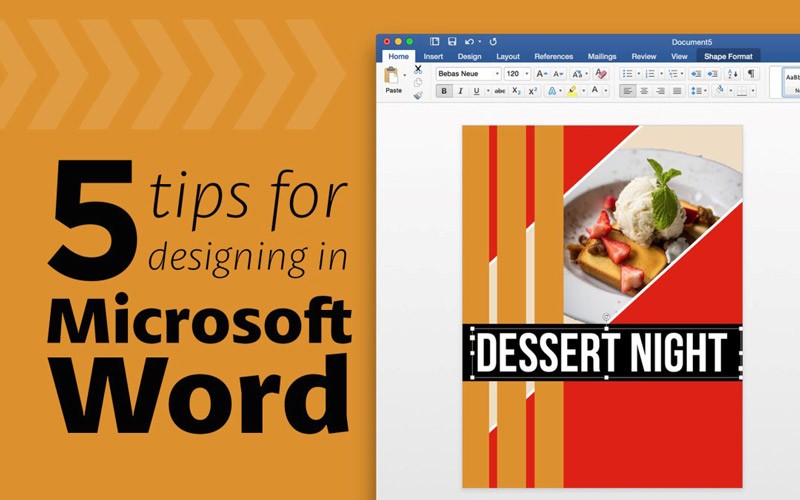
Microsoft Word is typically used as a word processing program. However, many people don’t realize that there are a lot of features to design in Microsoft Word. While it may be no Photoshop, it can still be used to create a nice, professional looking design. A lot of the features are hidden, though. Here are 5 tips to know when designing in Microsoft Word.
1. You can eye-drop color from a photo.
Do you have a photo that has a really nice color scheme and you want to implement that color scheme in your design? Instead of having to try and match the colors with your eye, you can let Microsoft Word do it.
Here’s how:
First select the shape you want to change color.
Select the “Shape Format” tab at the top.
Click on the “Shape Fill” arrow.
Choose “More Fill Colors…”
A dialog box like the one on the right will appear.
Click on the little eyedropper at the bottom left hand corner.
Now you can go anywhere with the magnifying glass on your desktop and choose color from the image in your document.
Now you have the same color from your photo!
2. It’s possible to move items in small increments.
Do you notice when you move an object with the arrow keys, it moves in large increments? It also sometimes snaps to an invisible grid and can be frustrating. No need to fear though because there is a hidden keyboard shortcut to combat this. If you hold down Option on the Mac (alt on the PC) you will then be able to use the arrow keys and it will move it in smaller increments. Great, huh?
3. ONLY use text boxes!
It’s so important that you use text boxes when you are designing in Word. You are able to move text boxes around wherever you want, whereas if you just click and start typing then you are constricted. So always make sure to go to the “Insert” tab and click “Add Text Box”.
4. Wrap Text is your friend.
When you first place an image in your document, you’ll find that it can be restrictive when you want to move it. If you right click on the image and then select “Wrap Text”. You’ll want to change it to be “Fix Position on Page” so that you can move it around freely.
5. Don’t limit yourself!
Just because you are designing in a word processor doesn’t mean that you can’t create something that looks good. Don’t be afraid to try things and Google anything that you want to know how to do. For example, did you know you can remove the background of an image all in Word? Google it to find out how!